Enabling the right Windows features for CRM and BBIS
Installing Blackbaud CRM on a new Windows Server and hitting an ASP.NET error? Here’s what it means and how to fix it.
If you have ever installed Blackbaud CRM on a new Windows Server, then you may have seen this message:
A feature you have selected requires the ASP.NET role service to be installed on this server first.
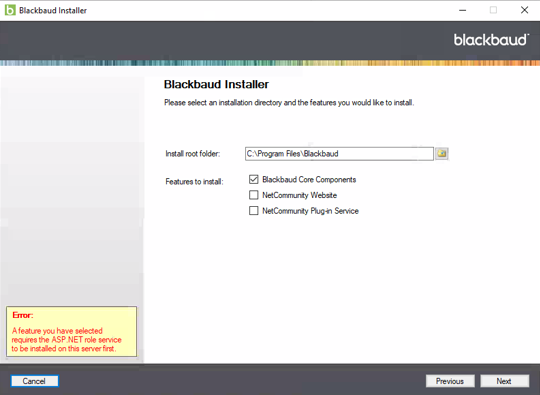
What does this error mean?
Both Blackbaud CRM and Blackbaud Internet Solutions run as ASP.NET applications under IIS.
That means that they both require IIS and ASP.NET to be installed on the server before they can run properly.
The installer knows this, and enforces this prerequisite.
How to fix it
Luckily, this is an easy problem to fix. Simply install the required features by following these steps:
- Log into the server where CRM or BBIS needs to be installed.
-
Open the Server Manager.
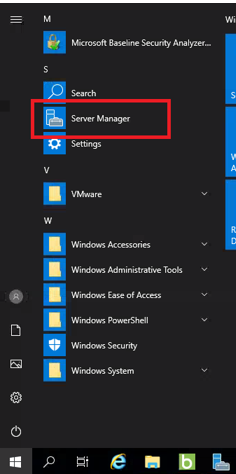
- Click Add roles and features.
-
Choose Role-based or feature-based installation and click Next.
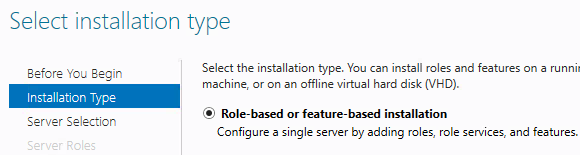
- Choose your current server, and click Next.
-
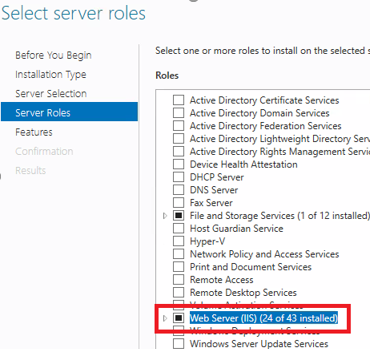
Select Web Server (IIS) and click Next.
-
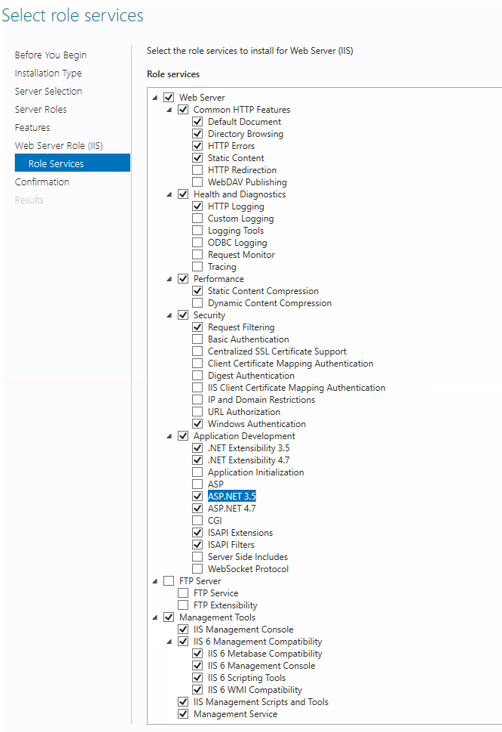
Select the features under Web Server (IIS) that
BBCRM and BBIS need, as shown in the screenshot below, and install
them.
Prefer a text list of these items? Refer to the Blackbaud Knowledgebase article.
Questions? Comments? Please reach out at contact@nonprofit-complete.com, or via any of the methods on our Contact page.