Listbuilder Plus
Listbuilder Plus enhances every Blackbaud CRM listbuilder with the option to save the current filtered list as a selection, and to manage those saved selections.
Category: Blackbaud CRM
Listbuilder Plus lets you save a listbuilder as a selection. The selection is available in the ad-hoc query tool, just as if you had imported it from a flat file.
This works with both out-of-the-box Blackbaud listbuilders and any custom listbuilder you’ve created yourself, as long as the listbuilder has a record type.
- After you purchase Listbuilder Plus, unzip the downloaded file. Inside, you’ll find two folders: bin and browser.
- Copy both folders into the bbappfx\vroot folder on your server. Or, if you’re hosted by Blackbaud, upload the zip file itself with the Blackbaud self-service deployment tool.
- Log into Blackbaud CRM and go to Administration > Application > Catalog Browser.
- Filter for a type of Package and an author of Nonprofit Complete, and load the Listbuilder Plus Package.
- To register the product, go to Administration > Nonprofit Complete > NPC License Keys, enter your license key, and click Save.
Listbuilder Plus is now fully installed.
After you install Listbuilder Plus, you’ll find a new task called Saved listbuilders under Analysis > Information library. It opens a page with two tabs.
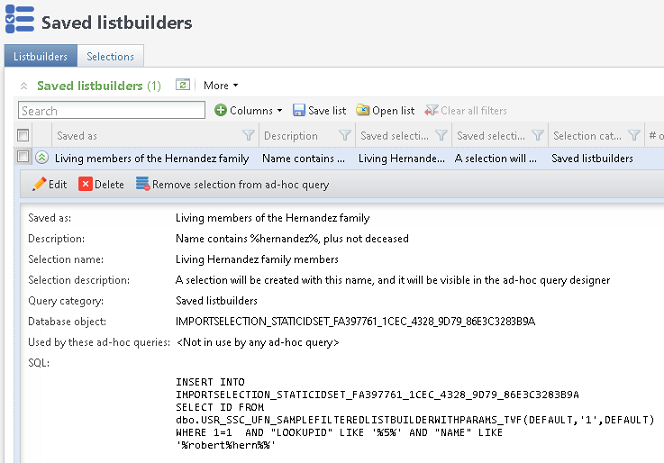
Every saved listbuilder appears on this tab.
Expand a saved listbuilder to see information about it, including the actual SQL used to generate your selection. You can also edit the listbuilder, or remove it from ad-hoc query.
A simple list of every selection in CRM, showing which import process created it, how many rows it has, and its underlying database object.

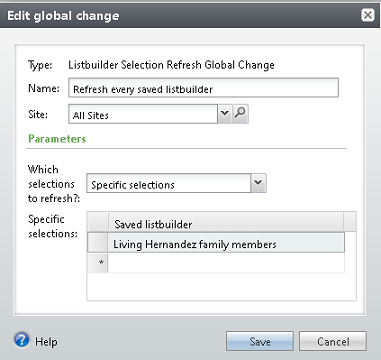
Refresh your selections with the Listbuilder Selection Refresh global change.
When you set it up, you can refresh every saved listbuilder, or just specific ones. Choose Specific selections to hand-pick the selections to refresh.
Whenever a selection is refreshed, its query runs again, and the selection changes to reflect your data as of that refresh.