FindIt
FindIt is a Windows utility that allows you to quickly search the contents of files, with special features to help you find what other tools cannot.
Category: Windows application
FindIt is intended to be easy to use. Let's walk through each feature.
InstallationAfter you purchase FindIt, you’ll receive an email with your download link and license key. Run FindIt-Setup.exe, paste your license key when the installer asks for it, and choose where to install. The whole process takes less than a minute; the video below walks through it.
Pick a folder. Enter a term or two. Click Search.
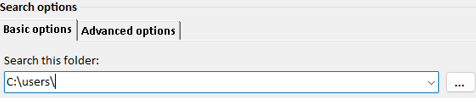
Search files in this folder, and all subfolders (unless otherwise specified on the 'Advanced' tab)
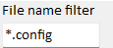
Limit your search to just files that match the pattern. For example, you might only search *.xml files, or *.config files.
Resets all filter options to the default values. Applies to both the 'Basic options' and the 'Advanced options' tabs.

Any files matching this pattern will be excluded from your search.
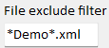
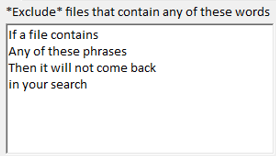
Type any terms you like here. A file that contains any of those terms will be excluded from search results.
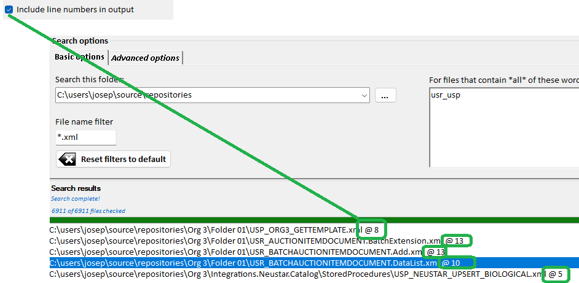
Displays the line number at the end of each search result.
Makes all search terms case-sensitive. This setting applies to both search and exclusion terms.
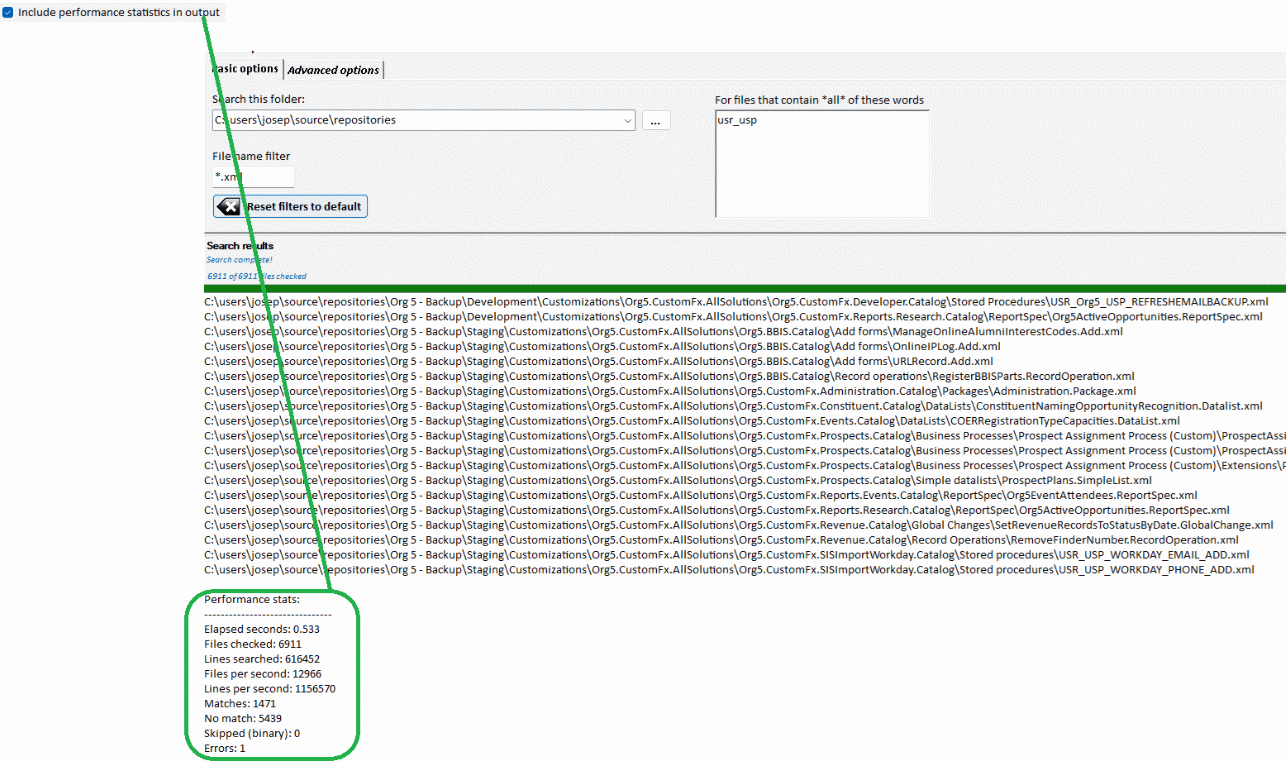
Appends a short performance summary to the end of your search results, describing the number of files and lines searched, and the rate of files and lines per second.
Default = checked. If checked, the folder you specified will be searched, along with all subfolders. If unchecked, then only the folder you specified will be searched.
Search DOC, DOCX, XLS, XLSX, and all other Microsoft Office formats using the same rules you have specified for text files. Note: Searching office documents is much slower than searching text documents.
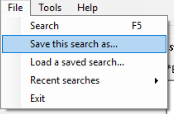
Under the File menu, you can save your current search. All of the current configuration for your search will be saved in a simple XML format when you do this.
Under Tools>Options, you can access more advanced options.
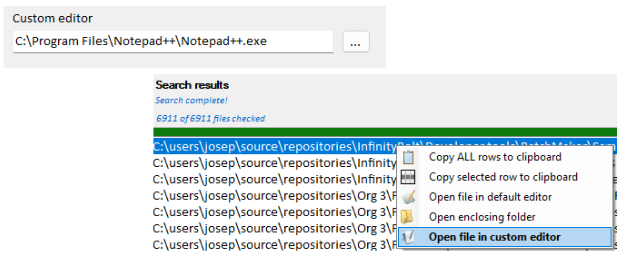
You can enter the path of any editor you like. Once entered, double-clicking on a result will open it in your editor of choice. Technical note: the application you use must accept a file name as an argument to work.
Default = false. If selected, then opening a saved .FIT file will immediately start running the search.
The default is based on the number of cores in your computer. You can lower this value to decrease the CPU load placed by FindIt on your PC, or increase it to experiment with getting even better performance.

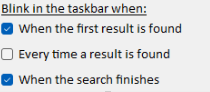
Choose when FindIt should blink in your taskbar. When the designated event occurs, FindIt will flash to notify you. Useful for stepping away from long-running searches.
- FindIt can only search folders that you have rights to search. To search folders that need Administrator access, you will need to run FindIt as an Adminstrator.
- Right-click on the results to expose more options. Copy ALL rows to the clipboard is handy for starting a script. For example, if you wanted to move all of the results to a new folder, you could use those results as a starting point for a series of XCOPY or Copy-Item commands.
- Searches can be designed to find items that need cleanup. For example, you might search for files that have an "Author" tag, but that don't have the correct Author filled in. Save those searches and run them periodically from their .fit file with a double-click.