Casement
Casement allows you to run SQL statements and perform deployments directly from CRM. In this way, it closes a major gap that burdens clients who are hosted in the cloud.
Category: Blackbaud CRM
- After you purchase Casement, unzip the downloaded file. Inside, you’ll find two folders: bin and browser.
- Copy both folders into the bbappfx\vroot folder on your server. Or, if you’re hosted by Blackbaud, upload the zip file itself with the Blackbaud self-service deployment tool.
- Log into Blackbaud CRM and go to Administration > Application > Catalog Browser.
- Filter for a type of Package and an author of Nonprofit Complete, and load the Casement Package.
- To register the product, go to Administration > Nonprofit Complete > NPC License Keys, enter your license key, and click Save.
Casement is now fully installed.
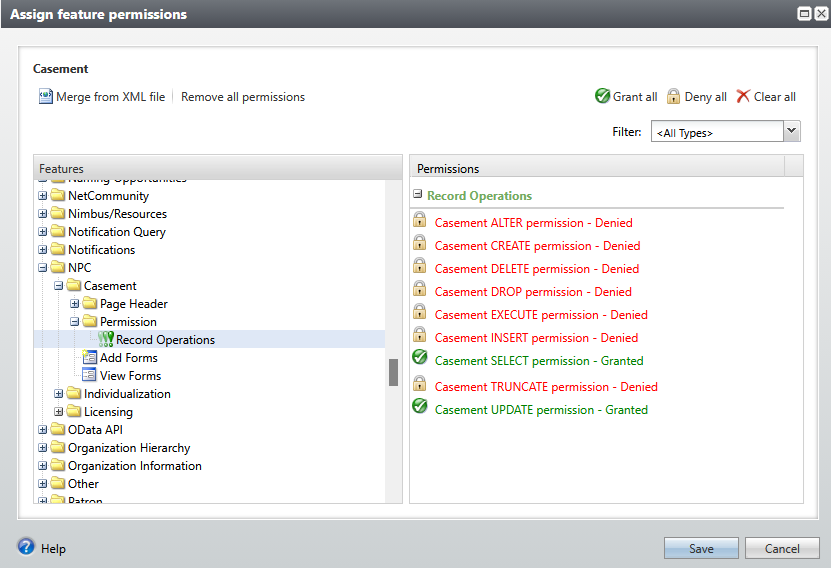
No one - not even administrators - can use the "SQL access" feature of Casement without explicit permissions. To grant permissions to this feature, follow these steps:
- Create a new security role for Casement Administration>Security>System roles>Add
- Select the "Users" tab, and add the users for whom Casement should be enabled.
- Select the "Features" tab, and click "Assign feature permissions"
- On the left-hand folder structure, scroll down to the "NPC>Casement>Permission>Record Operations" folder.
- Grant the specific SQL permissions you'd like the users of this group to have.
- Also grant the forms under the Page Header>View Forms folder.
- Also grant the forms under View Forms that begin with the phrase "SQL Execution" and the one called "Casement Permission Check View Data Form"
- Click Save
To run a SQL statement, go to Analysis>Casement>SQL access. Type your query, or load a saved query from a file. Press F5, or click "Execute (F5)" to run the query.
To perform any UPDATE or INSERT operation, you must first turn on "write mode" by clicking "Turn on write mode" along the top of the page.
No changes are ever committed to the database until you confirm them.
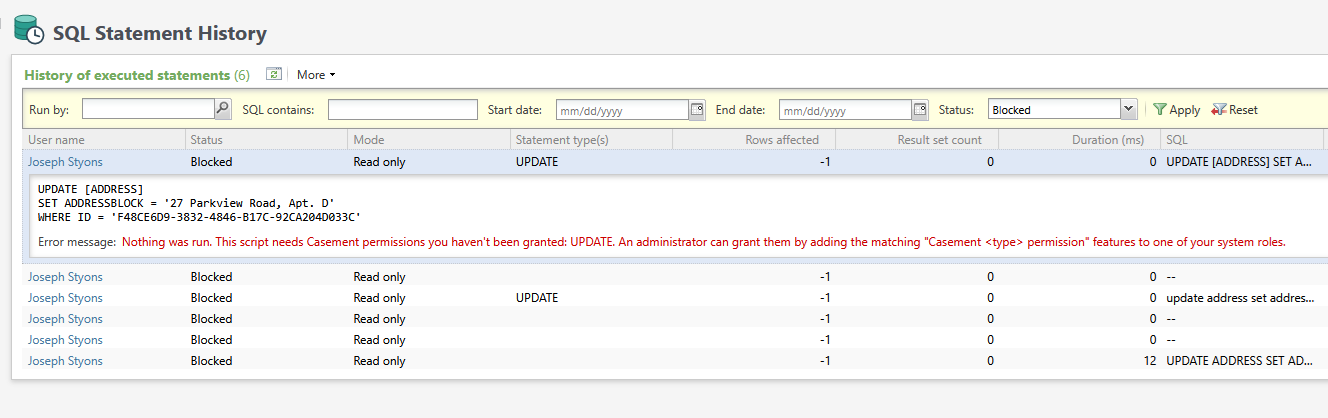
Click "Statment history" to view a record of every query that has been executed, the person who ran it, the number of rows affected, and the status of the statement (success, fail, etc.)
- First create your deployment package.
- Open CRM and browse to Analysis>Casement>Self-service deployment
- Drag your ZIP file onto the target area, or click the upload button and find your ZIP file.
- If this is an update to an existing customization, check the 'Overwrite existing files' box.
- Click "Deploy"
- Click "Catalog browser" and load any packages that you included in your deployment.
To deploy a customization using Casement, simply click on Analysis>Self-service deployment. From there, upload a ZIP file containing your customization. The zip file must be laid out as follows:
|Optional container folder
├───bin
│   └───custom
│           Your.Catalog.dll
│           Your.UIModel.dll
└───browser
    └───htmlforms
        └───custom
            ├───optional subfolder
            │       Your-file-1.html
            │       Your-file-1.js
            │       Your-file-2.html
            └───optional subfolder 2
                    Your-file-3.html
Note: You can also include a 'wrapper' folder, which will be ignored.
- Deploying HTML or JS files alone will not interrupt users in any way.
-
Deploying DLL files to the
vroot\bin\custom\folder will cause the application pool of CRM to recycle. This will interrupt active user sessions. Typically, the interruption will be for less than five seconds. However, users who are in the middle of working with an open form will lose their work. Therefore, deployments that include DLLs should be performed after hours whenever possible. - If your deployment does not include any SDK spec changes, then there is no need to load any package after deployment is complete. For example, if your deployment includes updated code in a UIModel class, that change will take effect without any package load.
- The security features are granted as Record operations, but no record operations are actually used to perform sql queries. Those operations are stubs, for permission purposes only.
- SQL queries are executed against your database as the application pool owner assigned to your BBCRM application pool. This is the same user that Blackbaud itself uses to access the database.
- When Casement evaluates what statement type you are running, it uses the official Microsoft T-SQL parsing engine found in Microsoft.SqlServer.TransactSql.ScriptDom. Read more about the behavior of that parser in the official Microsoft documentation. The library that supports that parser is included with Casement.
- If your SQL script contains more than one statement type (an UPDATE followed by an INSERT, for example), the user must have rights to run all of those statement types before any of them will execute.
- The drawing of the grid of results is performed by plain JavaScript. No third party library is required to support that view.
- The Casement self-service deployment tool can deploy updates to Casement itself.